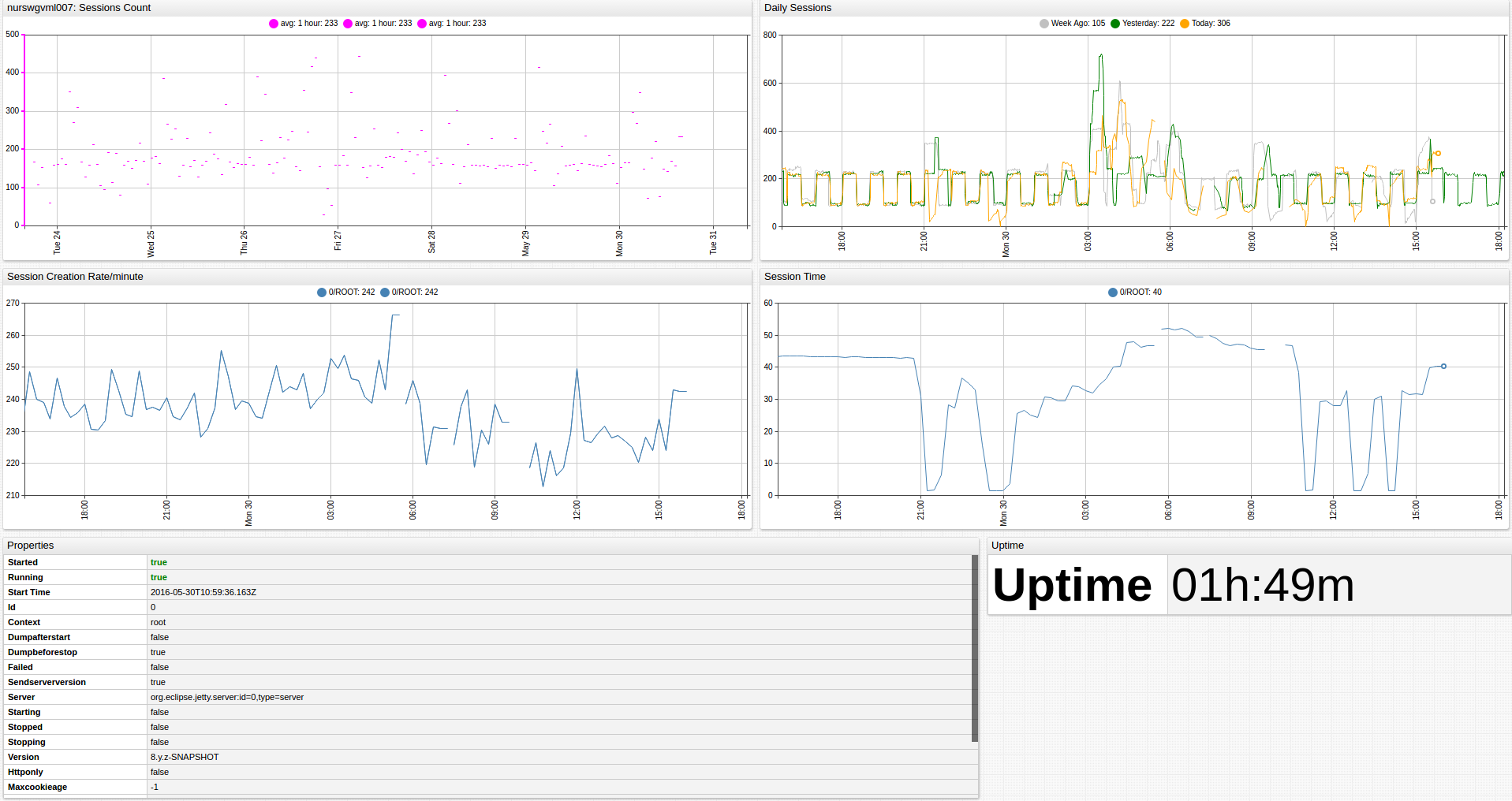
Jetty Web Server
Overview
This document describes how to collect JMX metrics exposed by Jetty (Web server) for long-term retention and monitoring in Axibase Time Series Database.
Requirements
- Jetty 6.+
Installation Steps
Enable JMX in Java Application
Configure your Java application for JMX monitoring as described here.
Import Jetty job into Axibase Collector
- Open Jobs:Import and upload the jetty-job.xml file.
Configure Jetty JMX Connection
- Open the Jobs:JMX page and select the
jmx-jettyjob. - For each JMX Configuration:
- Provide connection parameters to the target Jetty:
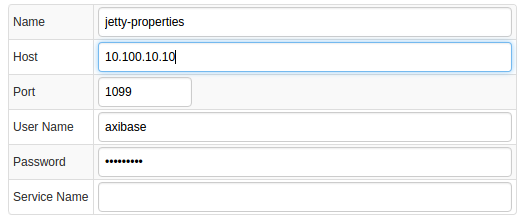
- Click the [Test] button and make sure that the result is correct:

Schedule the Job
- Open the
JMX Jobpage and click the [Run] button for the Jetty JMX job. - Make sure that the job status is
COMPLETEDandItems ReadandSent commandsare greater than 0.

- If there are no errors, set job status to 'Enabled' and save the job.
Verify Metrics in ATSD
- Log in to ATSD.
- Click on Metrics tab and filter metrics by name
jmx.jetty*.
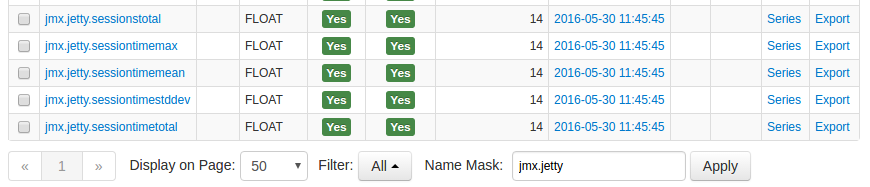
Viewing Data in ATSD
Metrics
- List of collected Jetty metrics.
Properties
- List of collected Jetty properties.
Entity Group
- Open Admin:Entity Groups, click the [Import] button, and upload jetty_entity_group.xml.
- Select the imported
jetty-web-servergroup. - Verify that the group contains your Jetty hosts.
Entity Views
- Open Configuration:Entity Views, click the [Import] button, and upload jetty_entity_view.xml.
- Select the imported
Java Applicationsview. - Select the Entity Group that you created earlier.
- Click on the [View] button and browse information about your entities.

Portal
- Open the Configuration: Portals, click the [Import] button, and upload jetty_portal.xml.
- Click the Assign link and associate the portal with the entity group you created earlier.
- Open Entity tabs, find the java application by name, and click on its portal icon.